
What you can do with Element Lab
Use the calculator on your phone or computer without installing an app or creating an account. It helps answer questions such as “How much would this equipment change my damage?”
| Your goal | Where to start |
|---|---|
| Choose your own four characters | Use Change character, including after loading a preset or UID build. |
| Compare artifacts | Enter main stats and substats for each of the five pieces, or enter their combined totals. |
| Use your own equipment | Import the supported characters currently visible in your public in-game showcase. |
| Measure a change | Fix a baseline DPS, then compare the difference, percentage and character contributions. |
| Set attacks and reactions | Choose the attacks, hit counts, reaction counts and rotation duration. |
| Save teams | Keep up to eight four-character teams in this browser. |
| Share your result | Export an Element Lab PNG card, open an X post, or send a link that restores your build. |
Try your first comparison in three minutes
You do not need to fill in every field first. A sample team and one small change are enough to learn how the calculator works.
- Keep the initial example, or select a team under Team presets.
- Review the four characters, equipment and attacks. Set the enemy conditions and rotation duration.
- Select Set current team as baseline.
- Choose one character and change just one artifact stat, such as CRIT Rate.
- Check the change in team DPS and each character's contribution. Keep the enemy, duration and hit counts the same while comparing equipment.
Set characters, weapons and artifacts
Choose Change character on any of the four cards, then search by name, element or region. Manually entered characters use level 90. Replacing a character resets that slot's gear, buffs and attacks; review the new attacks and counts. The other three slots are preserved.
Choose from the weapons and artifact effects supported by the calculator. Edit each piece lets you enter a main stat and up to four substats for each artifact. Enter totals uses the combined values instead. The two modes are not added together.
Flat HP, ATK and DEF are different from percentage bonuses. Replace the example values with the numbers shown in your game. Being listed in the artifact image gallery does not mean a set's effect is calculated automatically.
Import equipment with your UID
Element Lab requests supported public showcase builds through Enka.Network. A UID does not reveal every character you own. You do not need to provide an account password or verification code.
Imported builds use the returned character level and final stats, which already include equipment. Do not add the weapon and artifacts again. Check Normal Attack, Skill and Burst talent levels, since unavailable values start from defaults.
If you rotate your showcase, apply the characters you want to keep to a team and use Save team. The calculator does not yet persist a complete library of every imported character between visits.
- In Genshin Impact, edit your profile, display the desired characters and enable Show Character Details.
- Open Import UID in Element Lab and load your UID.
- Check levels, equipment and talents, then apply a character to a team slot.
- Review team buffs, conditional effects, attack counts and duration before comparing.
Enter your rotation and elemental reactions
In Rotation, add attacks and specify the number of damage hits. For multi-hit moves, the number of button presses may differ from the number of hits.
Set reacting hit counts on attack rows for Vaporize, Melt, Aggravate and Spread. Enter reactions such as Hyperbloom, Burgeon and Swirl separately, with their trigger character and count. Avoid counting the same reaction twice.
Enter the duration of the full rotation manually. The calculator does not derive a feasible rotation from elemental application, ICD, Energy or cooldowns.
Read DPS and the baseline difference
Total damage adds the four characters' configured attacks and separate reaction entries. DPS divides that total by the rotation duration: it is the average damage per second for those inputs.
For equipment comparisons, keep enemy level, resistance, hit counts, reaction counts and duration consistent. If changing a character also changes the rotation, the displayed difference includes both changes.
Damage uses an average based on CRIT Rate and CRIT DMG. It does not assume every hit crits. Open Calculation details on an attack to inspect the stats, talent scaling and multipliers used.
Entering 20 seconds for the same damage gives 12,000 DPS. Keep the duration fixed when you want to isolate an equipment change.
Save a team and share a card on X
Save team stores the four characters' equipment, enemy settings and rotation under a name. Reopen it from Compare teams. You can save up to eight teams in the same browser on the same device; automatic cross-device sync is not available.
Clearing browser data also removes local teams. Keep a share link for any build you want to reopen. Anyone with that link can inspect the equipment, stats and rotation it contains.
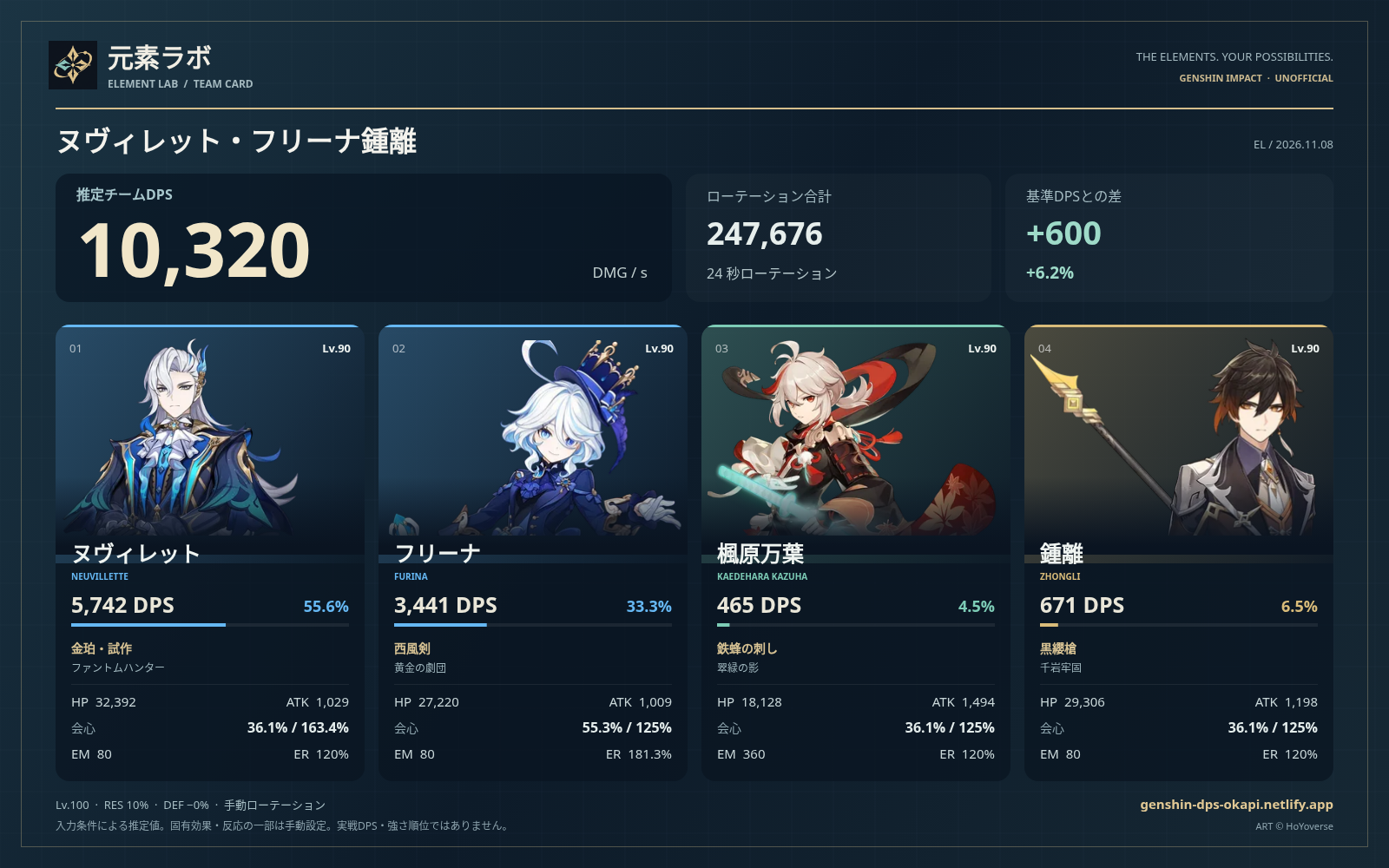
- Select Share at the top to preview a branded card with four portraits and team DPS.
- Choose whether to include the baseline difference, then use Save image for a 1600 × 1000 PNG.
- On supported phones, choose X from Share image.
- Post on X opens the post text and team link. Attach the saved PNG if you want the image in the post.
- Team link copies a link that restores the build. Your UID and player nickname are not added automatically. The team name you enter appears on the card.
What is calculated and what needs manual input
Use Element Lab to compare clearly defined inputs. Check the settings and warnings alongside the result when judging a build.
| Item | Current behavior |
|---|---|
| Direct damage, average crits, defense and resistance | Calculated from the entered stats and supported talent data. |
| Supported weapon and artifact effects | Implemented effects are included. Set conditions such as stacks and off-field status in the interface. |
| Reaction counts and many passives, constellations and team buffs | They do not all trigger automatically. Review and enter counts or additional modifiers manually. |
| Lunar and Stellar reaction mechanics | Some unique damage and conversions are not implemented. Treat affected teams as reference DPS. |
| Application, ICD, Energy, cooldowns and time-varying buffs | Not simulated as a combat timeline. Reordering attacks alone does not change timed effects. |
| Healing, shields and execution difficulty | DPS alone cannot evaluate these. Consider practical comfort separately. |
Common questions and troubleshooting
Do I need to enter a UID to start?
No. Start with the default example or a preset. Change one stat, such as CRIT Rate, and compare against your baseline.
Why did UID import find no characters?
Check your in-game showcase and Show Character Details setting. Hidden, unsupported or incomplete builds cannot be imported. Server propagation, Enka maintenance or request limits can also delay loading.
Why does the result differ from the game or another tool?
Match hit counts, duration, enemy, talents, crit assumptions, buffs and reactions. Some effects require manual input. Review character notes and Calculation details.
Why are my saved teams missing on another device?
They are stored in the browser you used, without automatic sync. Send a share link to open its build settings on another device.
Why did Post on X not attach my card?
The X post button passes text and a link. Save the image and attach it, or use Share image on a supported device.
Set timed buff windows
Schedule attacks in Rotation, then choose Add timed buff below the timeline. Enter a name, start, duration, target, effect and added value. Supported effects include damage bonus, flat HP/ATK/DEF, EM, Crit Rate, Crit DMG and enemy RES reduction. You can also filter by damage element and attack type. Enter values for your chosen game conditions manually.
Each attack defaults to evaluating all hits at its start. Uniform over duration (estimate) splits the interval at buff boundaries and weights hit and reaction damage by time. For example, a buff active for 5 seconds of a 10-second attack contributes half the fully buffed damage and half the unbuffed damage. This is not an automatic simulation of actual hit timings or snapshots.
Unscheduled attacks and separate reaction rows receive no timed buffs. A buff is inactive exactly at its end time. Active buffs add together, including character editor buffs, so enter each effect only once. Attack calculation details show the applied windows and buff names. Settings are included in automatic saves, saved teams, team share links and comparison links.
Enter hit times and check casts
Select an attack in the timeline and choose At each entered hit time. Enter offsets from attack start, hit counts and reacted-hit counts. Damage uses buffs active at each entered time. Up to 32 points are supported, and simultaneous hits can be grouped. Space individual hits evenly is an input aid, not real frame or ICD data.
Enable Cooldown and energy check. Enter each character’s skill and burst cooldowns, energy capacity, starting energy and burst cost. Add separate cast and final energy gain events, with Energy Recharge already included. Checks process time order, use list order for ties, cap gains at capacity and report cooldown conflicts or insufficient energy. Blank fields remain unknown.
This checks your manually entered event plan. Cooldowns start ready; unchecked casts are assumed to occur for later checks. Rejected casts consume no energy and do not restart cooldowns. Attack rows and cast events are independent, and failed checks do not remove attacks from DPS. Automatic particles, multiple charges, cooldown reductions, actual snapshot behavior and subsequent rotations are not simulated. Saved teams and share links retain all settings.